For coffee shops and small stores with part-time staff. Create your store in a few minutes; KipCa takes care of the rest.
On Android? Until KipCa is on Google Play, open kipca.app in your browser and use the web version right away, nothing to install, or install the Android app (APK) to clock in and get shift notifications on your phone. Computers use the web version.


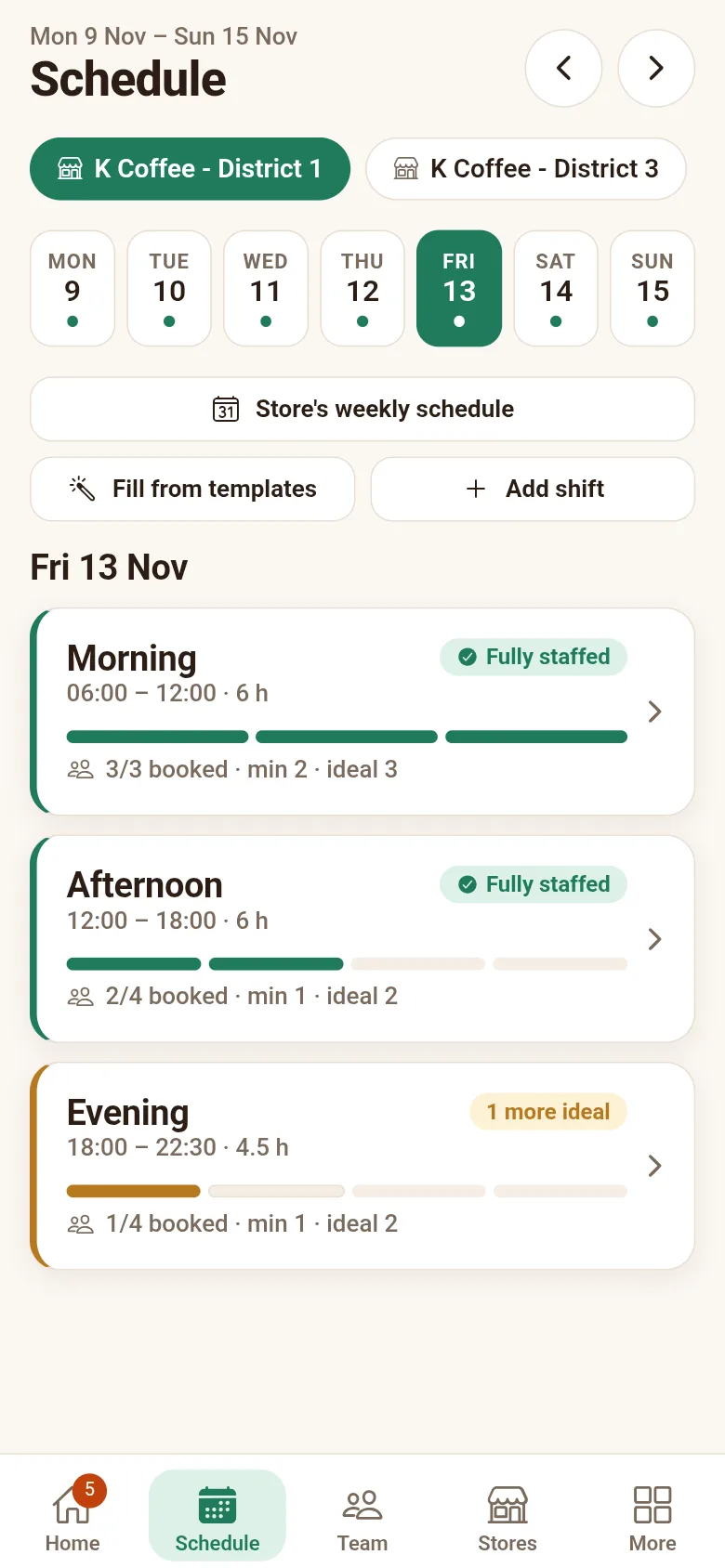
Staff pick preferred shifts; KipCa books the schedule every week.
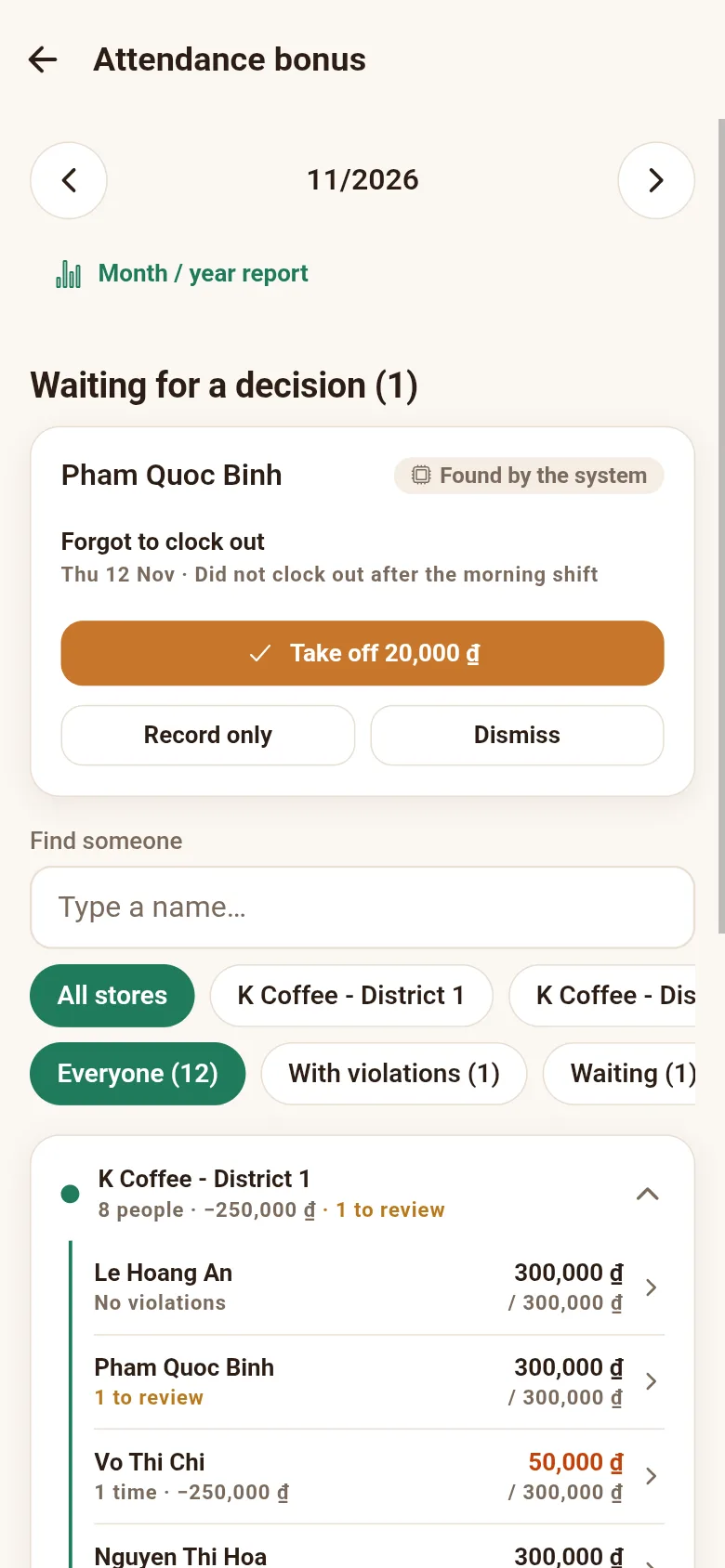
Clear in and out times; lateness comes off the bonus, never off pay.
Cleaning photos and start / end cash, sent to you right away.
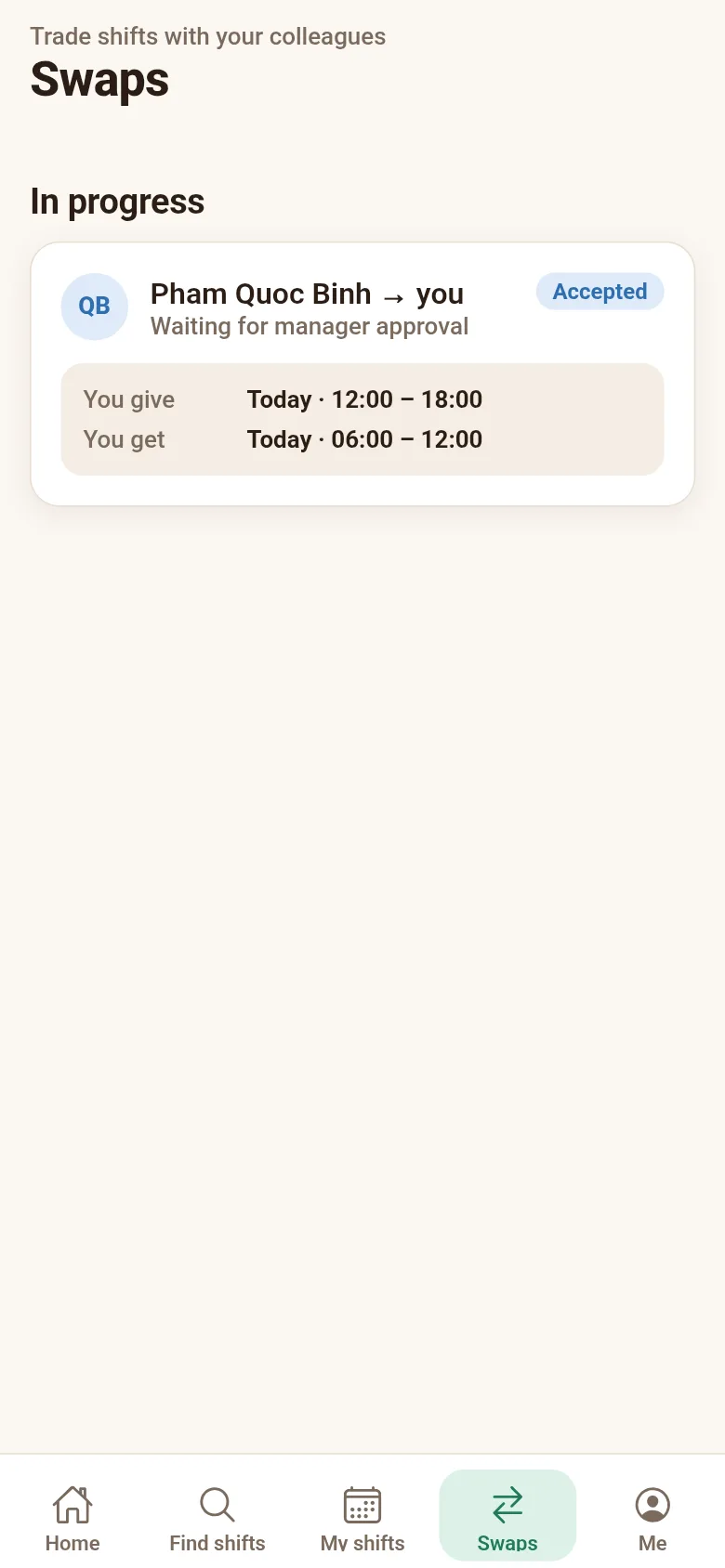
The coworker agrees, a manager approves, the schedule updates.
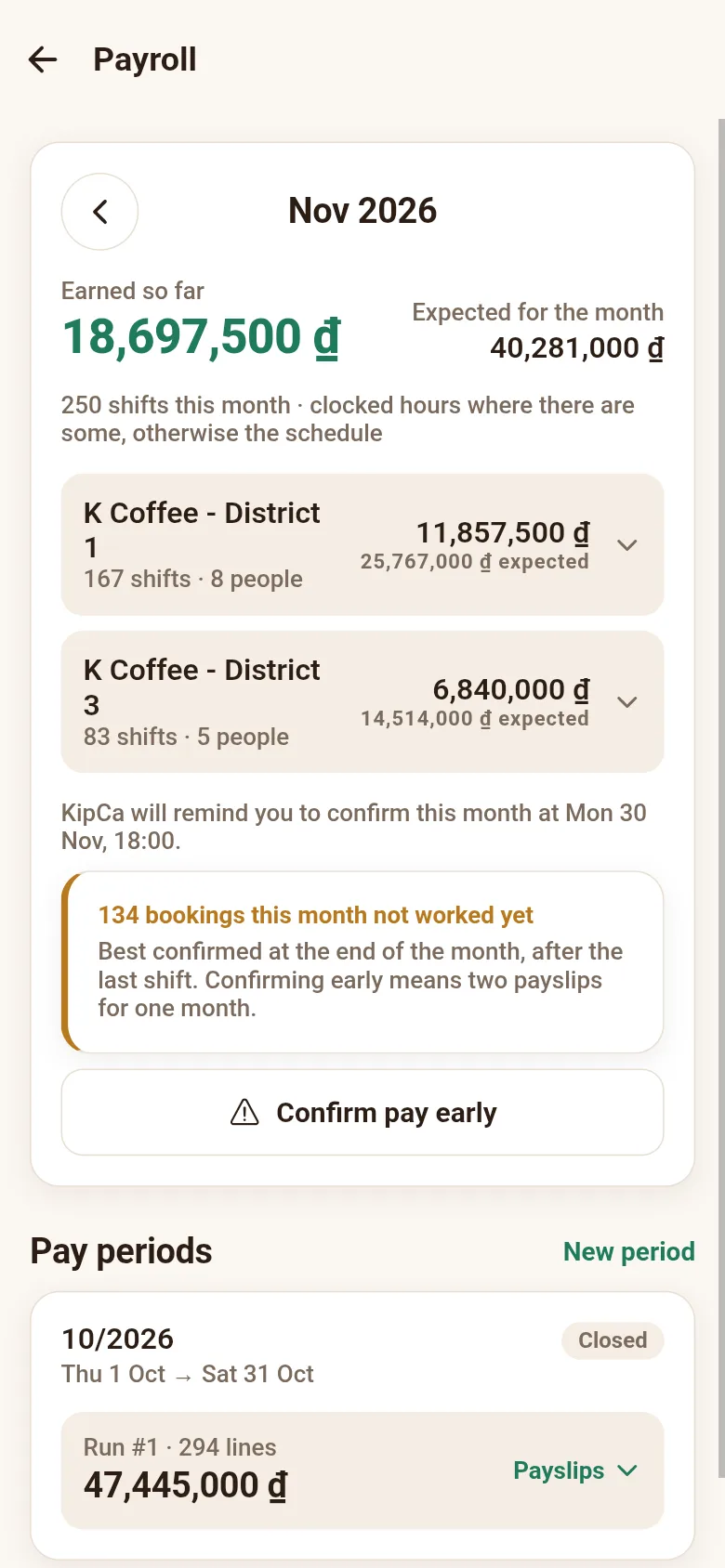
Hours, commission, attendance bonus; everyone gets a payslip.
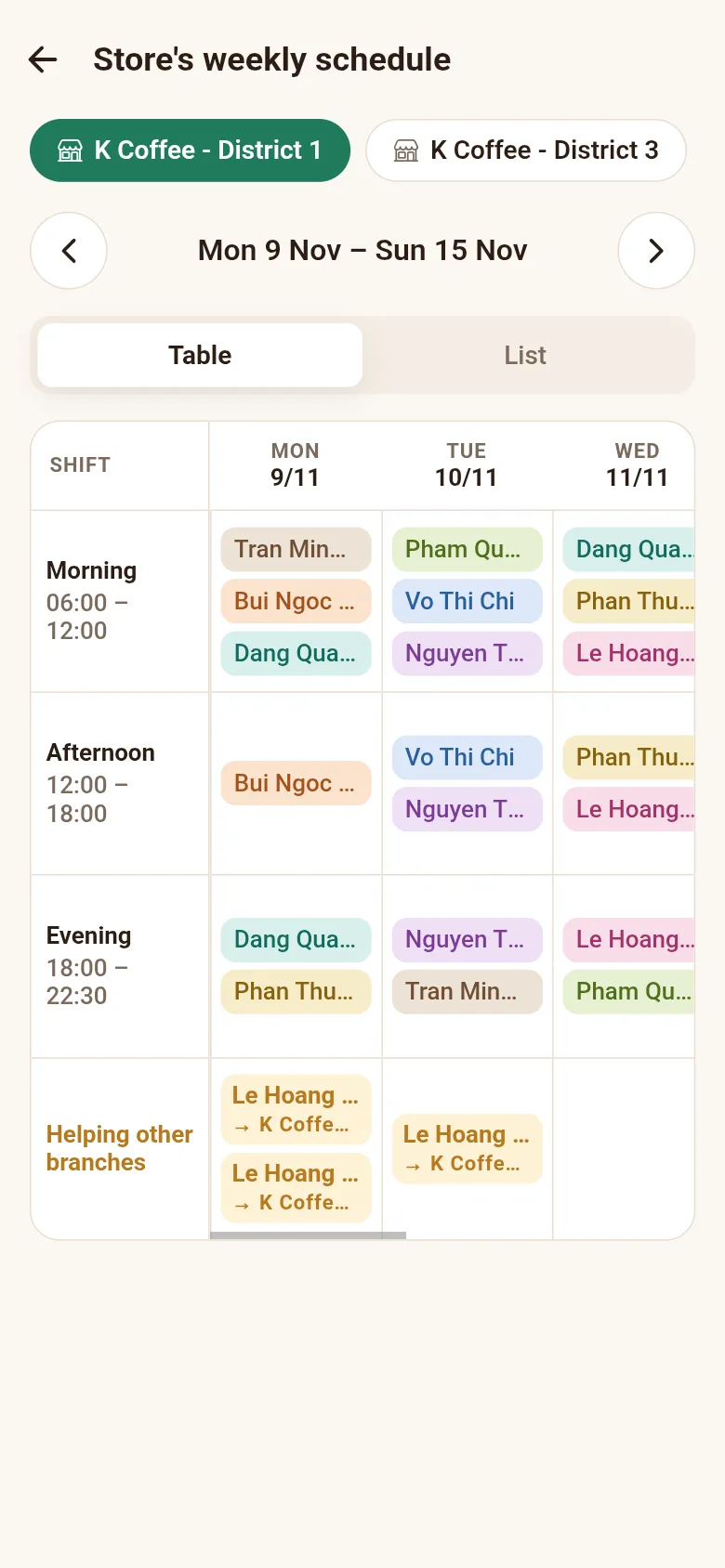
One account for every branch, each with its own managers.
Every step comes with suggestions: pick one and tap Next. You can change everything later.
Enter the store name, an address (optional) and pick the business type.
Tap a suggested set, then rename, retime or add shifts. They repeat every day. Choose people per shift.
Pay by the hour or by the shift. New staff you approve get this wage; change it per person when approving.
Pick how strict the store is, then tap Create store.
The invite code shows right away: send the code or its QR code to your staff. KipCa makes the next 2 weeks of shifts from the ones you entered.
The form adds a “Where to start?” step. Pick Same as K Coffee - District 1: shifts, pay, people per shift, shift reports and every rule are copied, you only enter the name. Staff don't move over: send them the new store's invite code.
Settings are grouped into Shifts, Pay & attendance bonus and During a shift. Each row says what is on now; anything missing is tagged “Needs setup”.
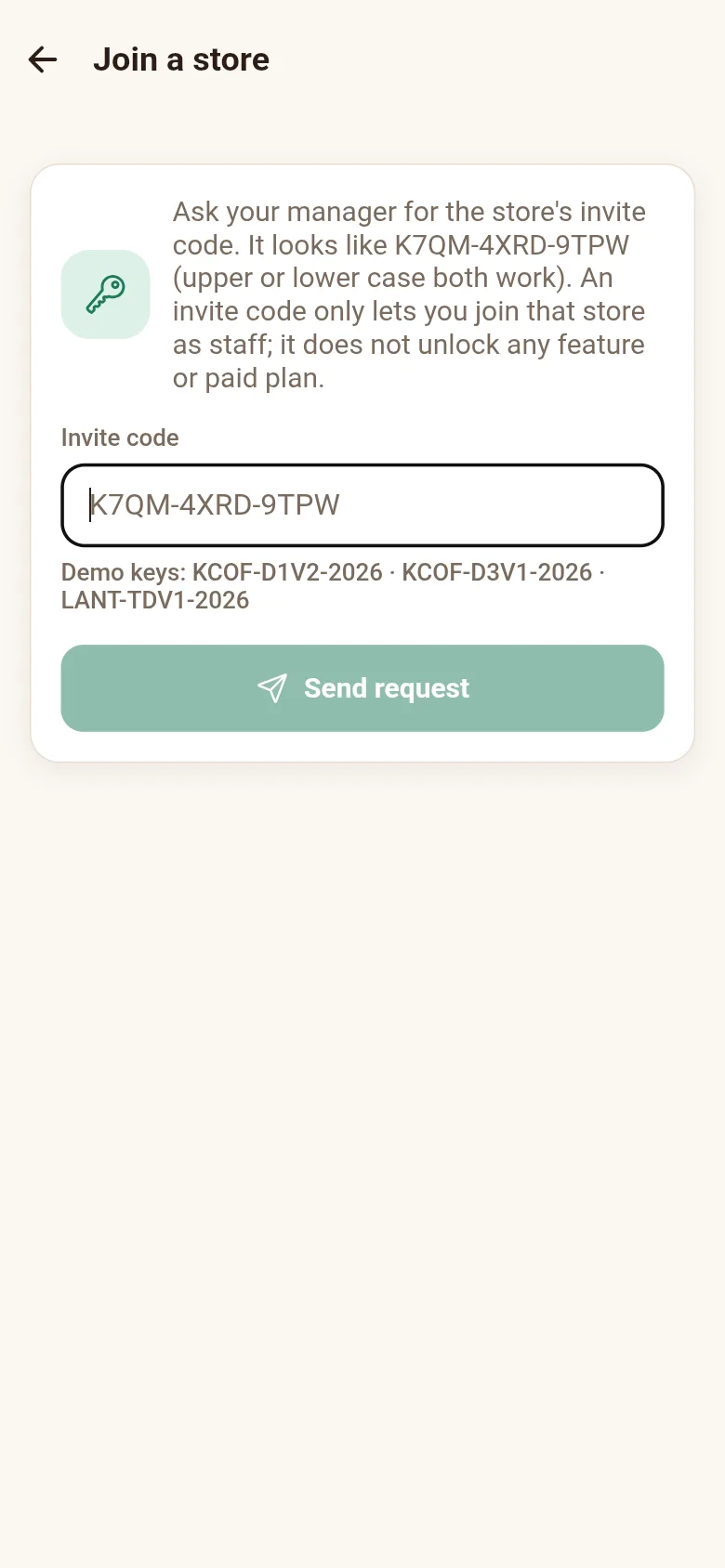
Pick a role to see the steps. The owner sets things up once; staff only need an invite code to join.
Open kipca.app or get the app on the App Store, and sign in with Gmail (on iPhone, your Apple ID works too). No new password to remember.
4 steps: store details, shifts, pay, how you run it (see them). KipCa makes the next 2 weeks of shifts from the ones you enter.
Morning 07:00–12:00 · 2 people per shift
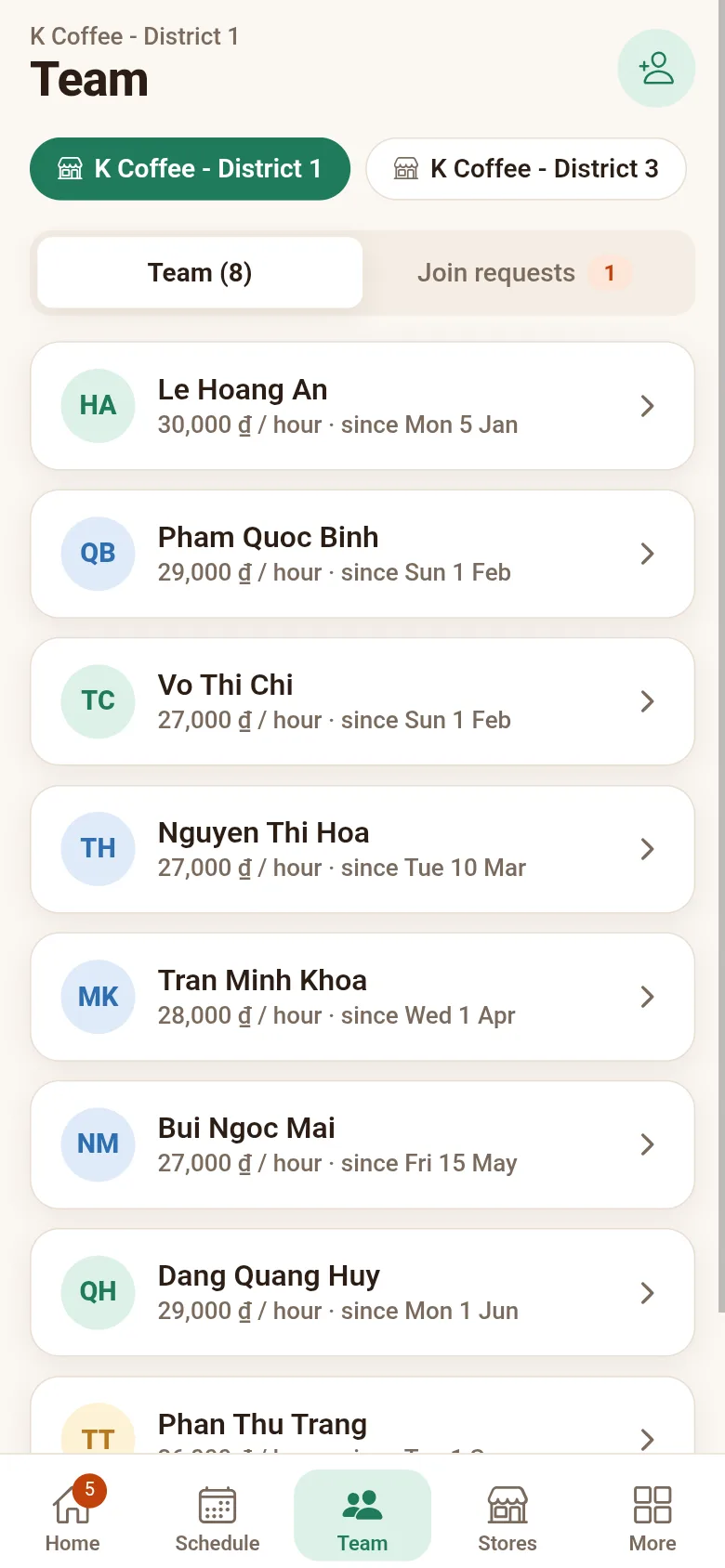
The invite code shows as soon as the store is created: send the code or its QR code to your staff. When they ask to join, approve them under Team. Need a new code? Stores → pick the store → Invite your team.
K7QM-4XRD-9TPW
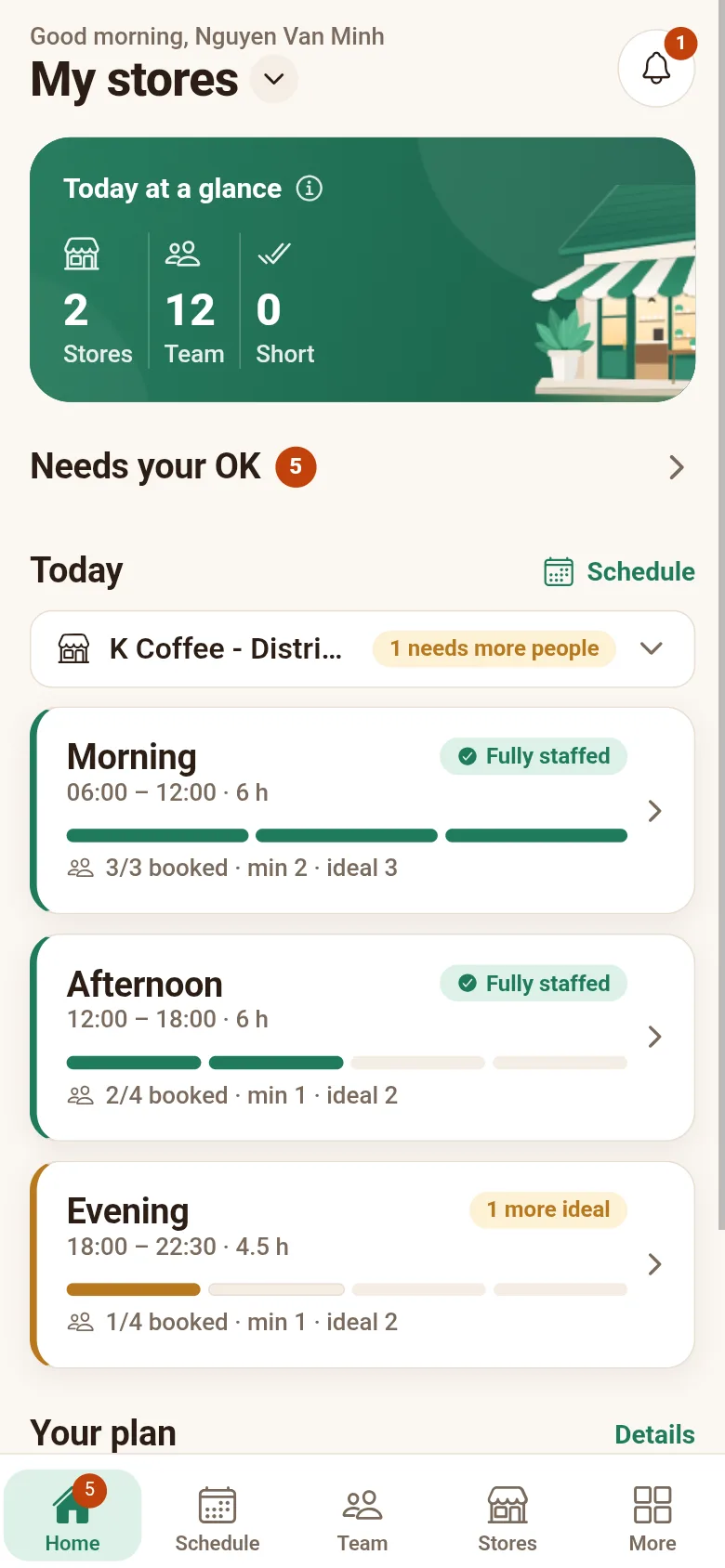
Staff take shifts and the schedule fills up. You approve requests and swaps, and get a reminder when a shift is about to be short. With several branches, make someone the manager of each store and they approve for you.

New weeks are made from your templates, staff take their shifts, every shift sends its report, and payroll is ready at the end of the month.
On iPhone, get KipCa on the App Store; on Android, open kipca.app in the browser or install the APK (Google Play is coming). Sign in with Gmail and choose “Join a store with an invite code”.
K7QM-4XRD-9TPW
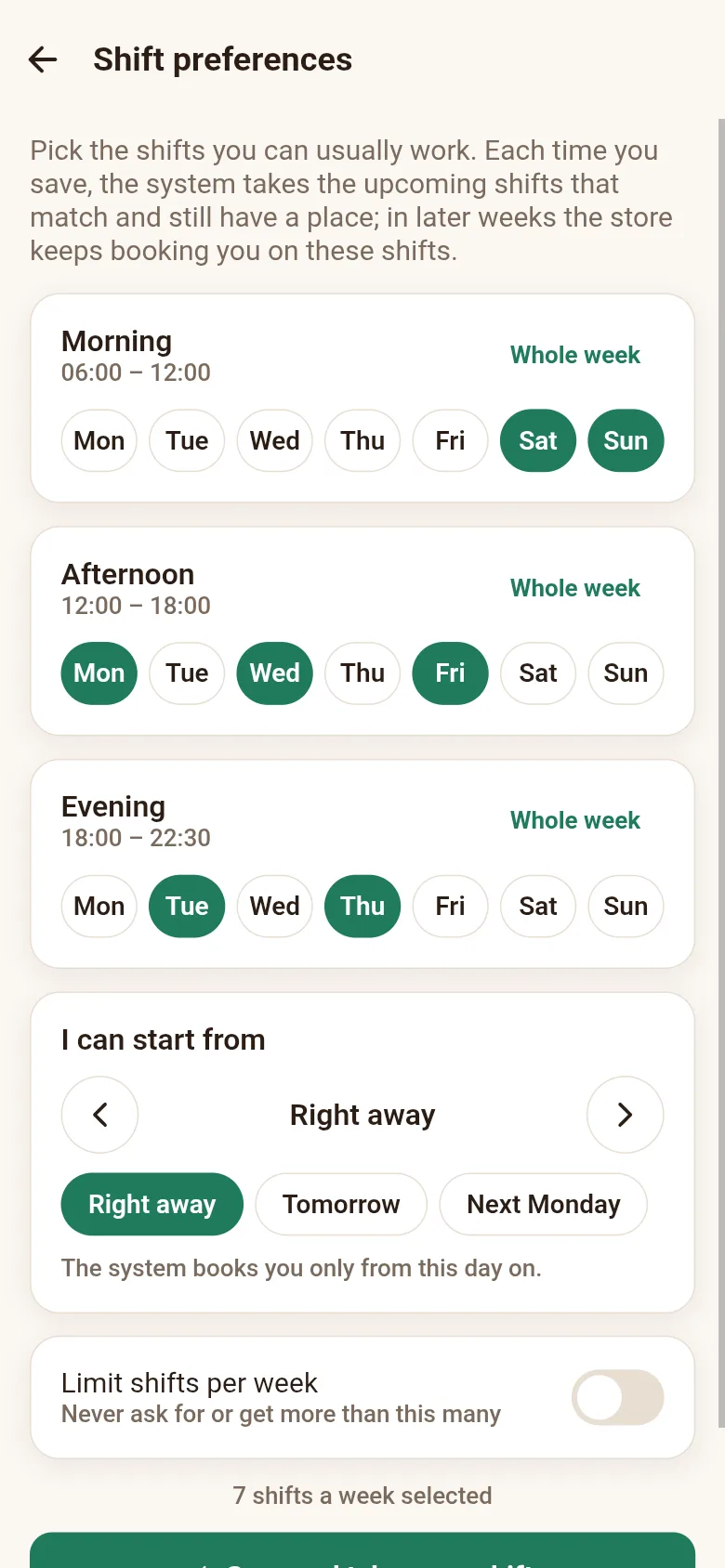
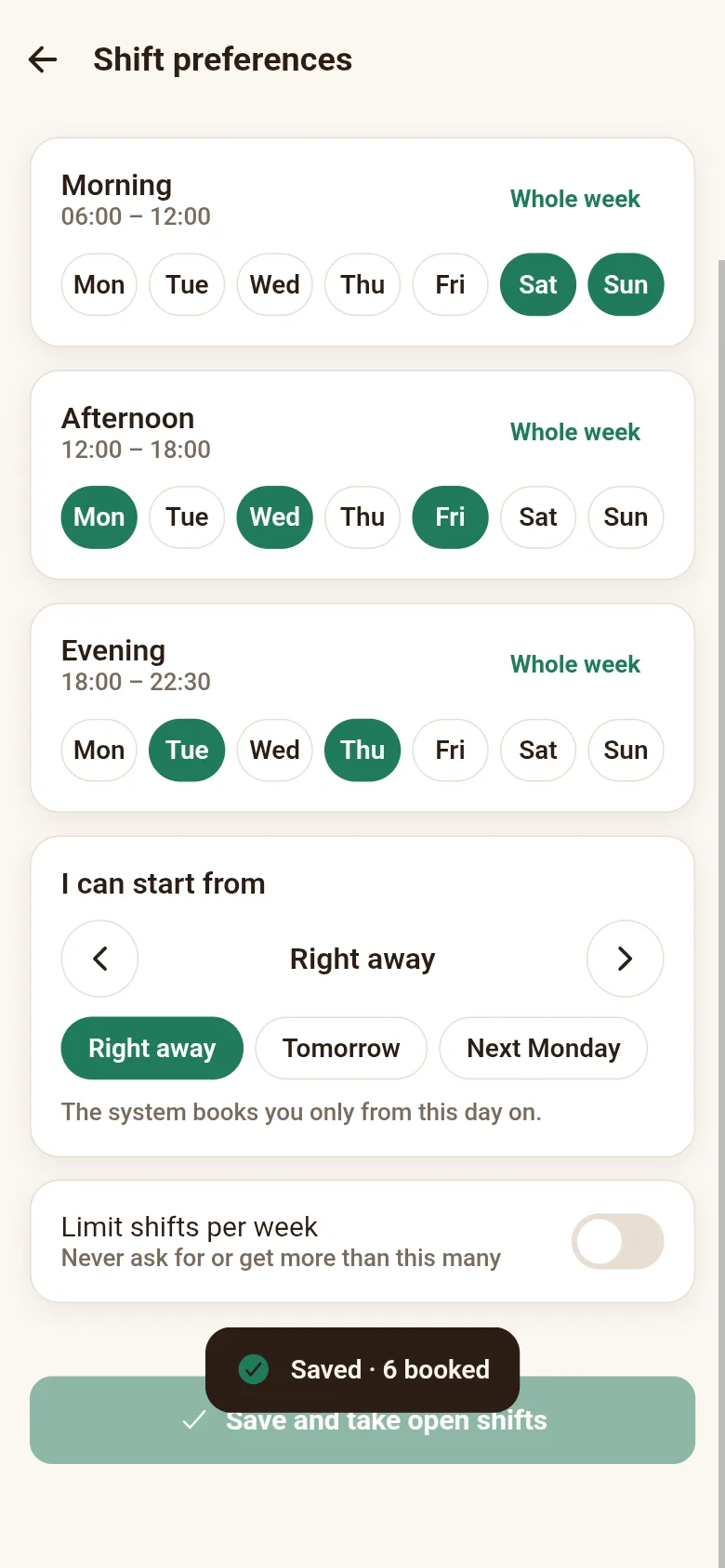
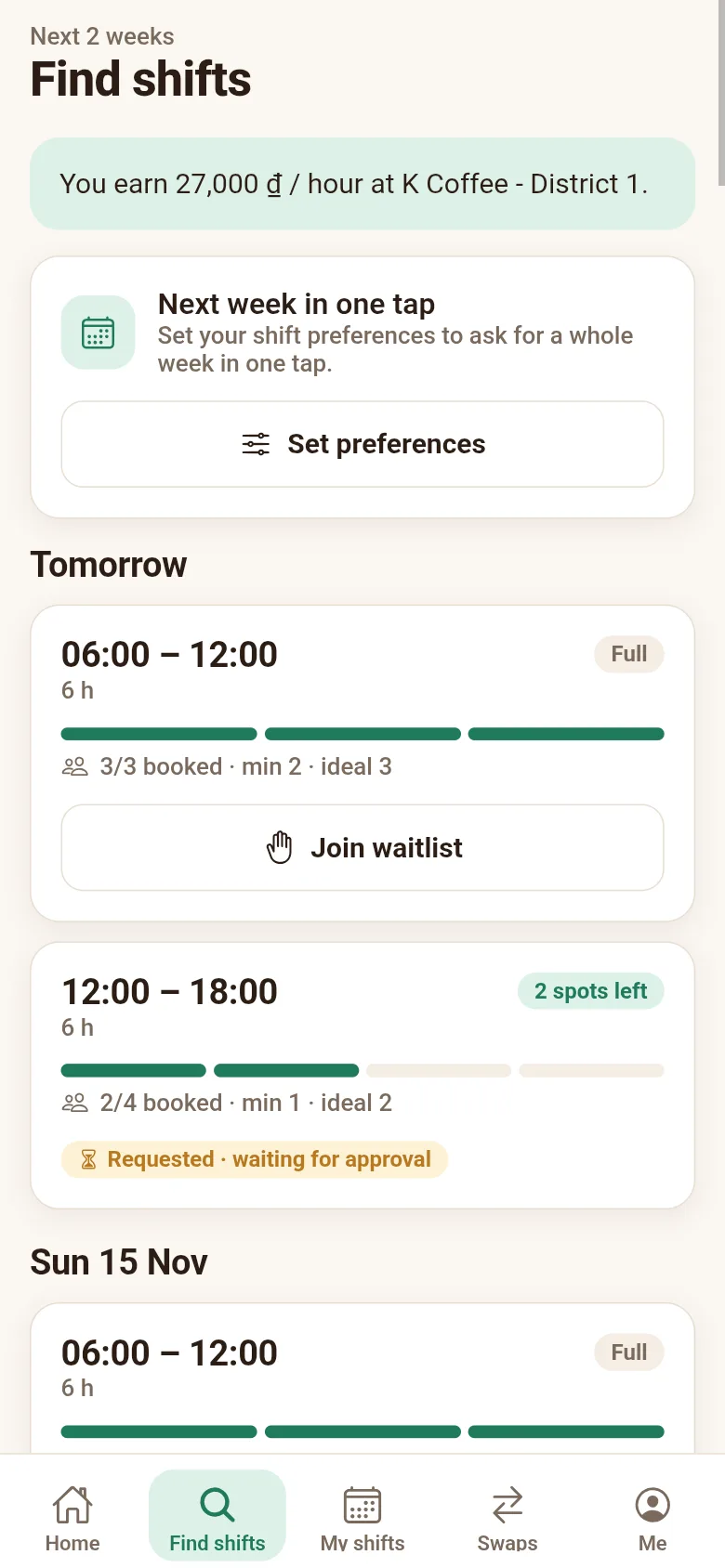
Tap the shifts you can work each week. Save, and you are booked right away on the ones with a place; in later weeks the system keeps booking you. Want more? Take open shifts under Find shifts.

Ask for a swap in the app. Your colleague agrees, the manager approves, no back-and-forth messages.

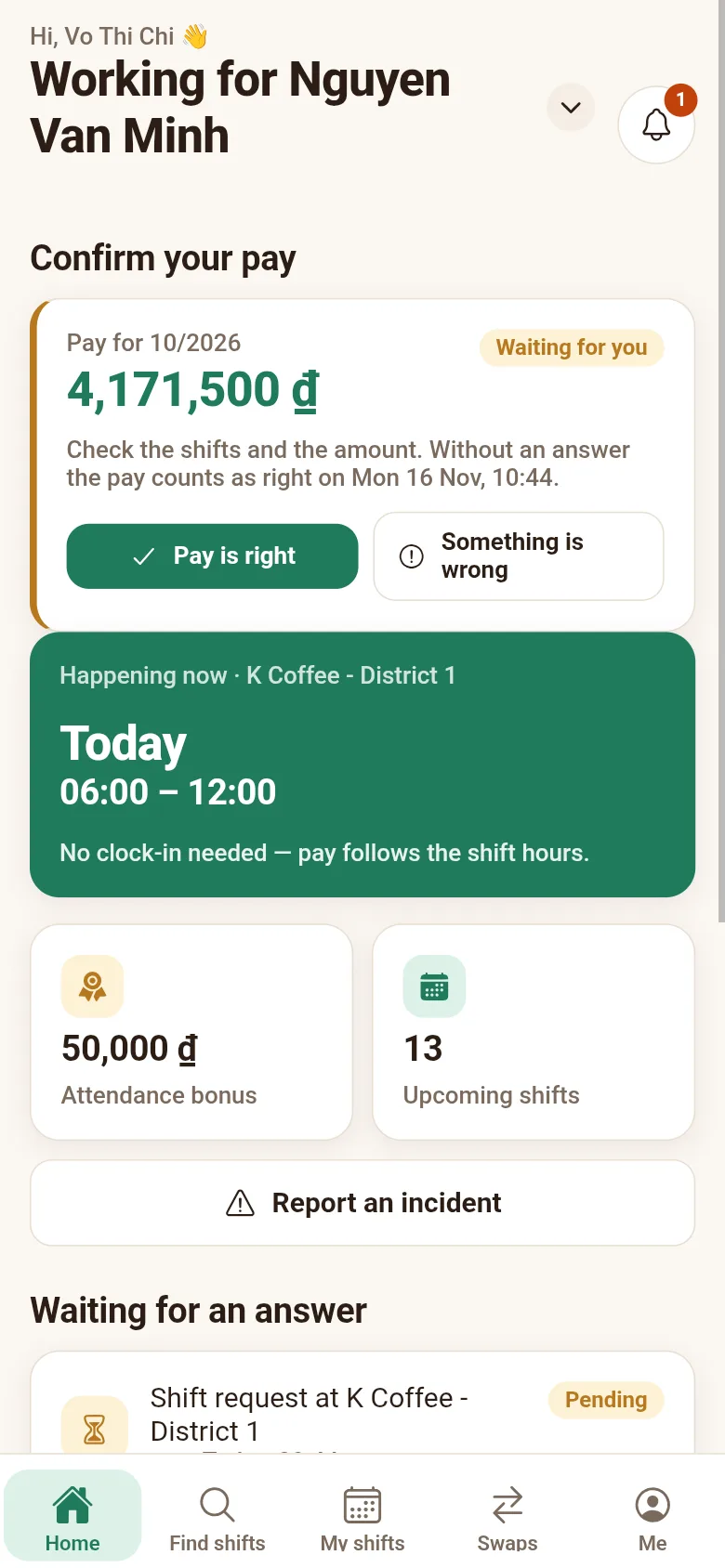
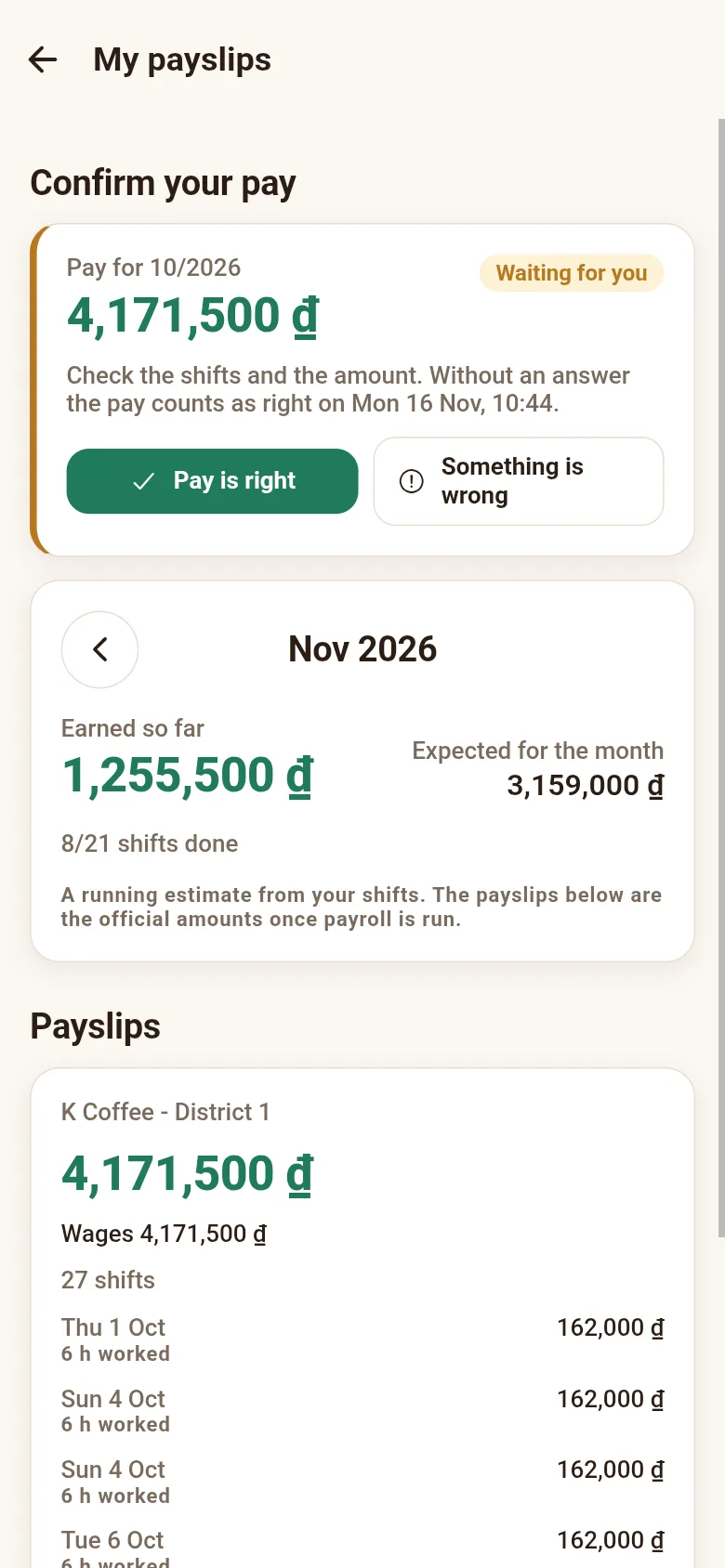
Clock in and out of your shifts. If your store uses shift reports, take the cleaning photos and report the money at the start and end right in the app. See your pay so far at any time, and at the end of the month check your payslip and tap “Pay is right”. Want reminders? Add your shifts to Google Calendar or the iPhone Calendar.

No asking about the schedule in the group chat, no waiting until the end of the month to see your pay.
Most part-time staff are students. Instead of asking “which shifts are you free this week?” every week, each person picks the shifts they can work around their classes, and the system books shifts from that, week after week.
Tap the shifts you can work each week. Set the day you can start and a weekly limit so work never gets in the way of studying.
The system takes the upcoming shifts that match and still have a place. Shifts that are already full are left; in later weeks the system keeps booking you from your choice.
With auto-booking on, every Thursday at 8pm KipCa books staff into next week's shifts from their preferences and tells each person.


Once you are approved, the app asks “Which shifts can you work?”. Save, and this week is already scheduled.
New class times? Update them under Me → Shift preferences. Later weeks are booked from the new choice.
The owner only reviews the shifts still short. Staff get notified of their shifts, no back-and-forth messages.
Switch on shift reports for a store, and on every shift staff send photos of what they cleaned and the money at the start and end. You and the manager are notified as soon as a report is sent.
Staff photograph the counter, floor and washroom once cleaned, with a note on any photo. You pick the due time, from 30 minutes to 8 hours after the shift starts. No photo by then, and KipCa reminds staff, managers and you.
At the start and end of the shift, staff report the cash in the till and the money in the store's account. KipCa works out the change since the start and shows who reported and when; a fix is marked “corrected”.
After the shift, staff tap “Send the report”. Under Shift reports you see every shift of the day, with the late ones at the top.
“Out of toilet paper, told the manager”
Pick a store, turn on the cleaning report, the money report or both, and set when photos are due.
Reports stay open until 3 hours after the shift ends. After that, a manager can still fill them in.
Cleaning photos come with the paid plans: up to 15 photos a shift, kept for 35 days.
Screenshots of the KipCa demo: two coffee shops with 12 part-time staff.


Scroll sideways for more →
Paid plans have no limit on stores; you pay by the size of your team.
1 store, up to 5 people. Enough to run a small shop.
Any number of stores, up to 25 people.
Any number of stores, up to 60 people.
Any number of stores and people.
Staff use KipCa for free. Every plan has scheduling, attendance, money reports and payroll; cleaning report photos come with the paid plans. Prices include taxes (if any), with no other charges; paid plans are bought in the app, billed monthly and renew until you cancel.
No. Only the owner pays, by the size of the team. Staff download the app, sign in and use it for free.
Yes. Open kipca.app in a browser and sign in with the same account as on your phone; it is the same data.
Still one account. They enter each shop's invite code, even when the shops have different owners. Schedules and pay stay separate for each place.
No. Late arrivals and missed clock-ins come off that month's attendance bonus, never off pay. You and your staff both see every deduction.
No need. Make someone the manager of each store: they approve shift requests and swaps and see the shift reports for their store. You still see everything.
The sign-in screen has a demo: pick an owner or a staff member and try KipCa with sample data, no account needed.
Delete your account right in the app or on the web, no request needed. See how, and what is deleted, at kipca.app/delete-account.
Want a look first? The sign-in screen has a demo: pick an owner or a staff member and see KipCa through their eyes, no account needed.
On Android, use the web version at kipca.app or install the APK until KipCa is on Google Play.